How to Change Router Settings
Learn how to access and change router settings, from finding your router's IP address to configuring security settings. Step-by-step guide for all router brands.
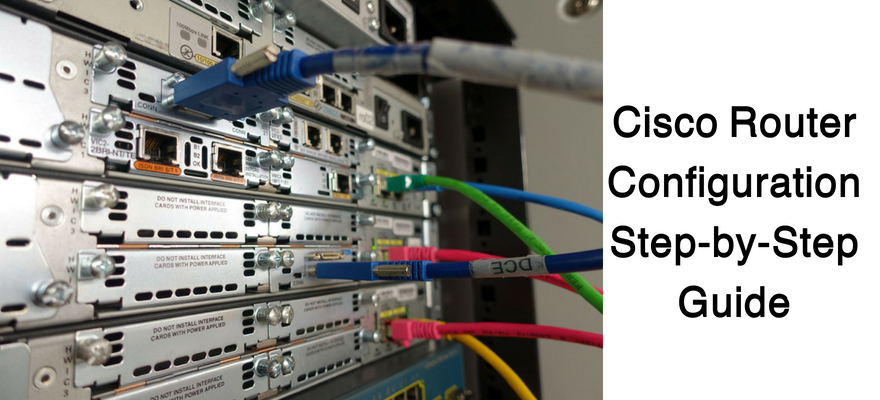
Warnings This document is only a guide to recommended security settings for Internet Protocol ( IP ) routers , particularly routers running Cisco Systems Internet Operating System (IOS) versions 11 and 12. It is not meant to replace well-designed policy or sound judgment. This guide does not address site-specific configuration issues. Care must be taken when implementing the security steps ...
Furthermore, visual representations like the one above help us fully grasp the concept of Router Ip Address Security Configuration Guide.
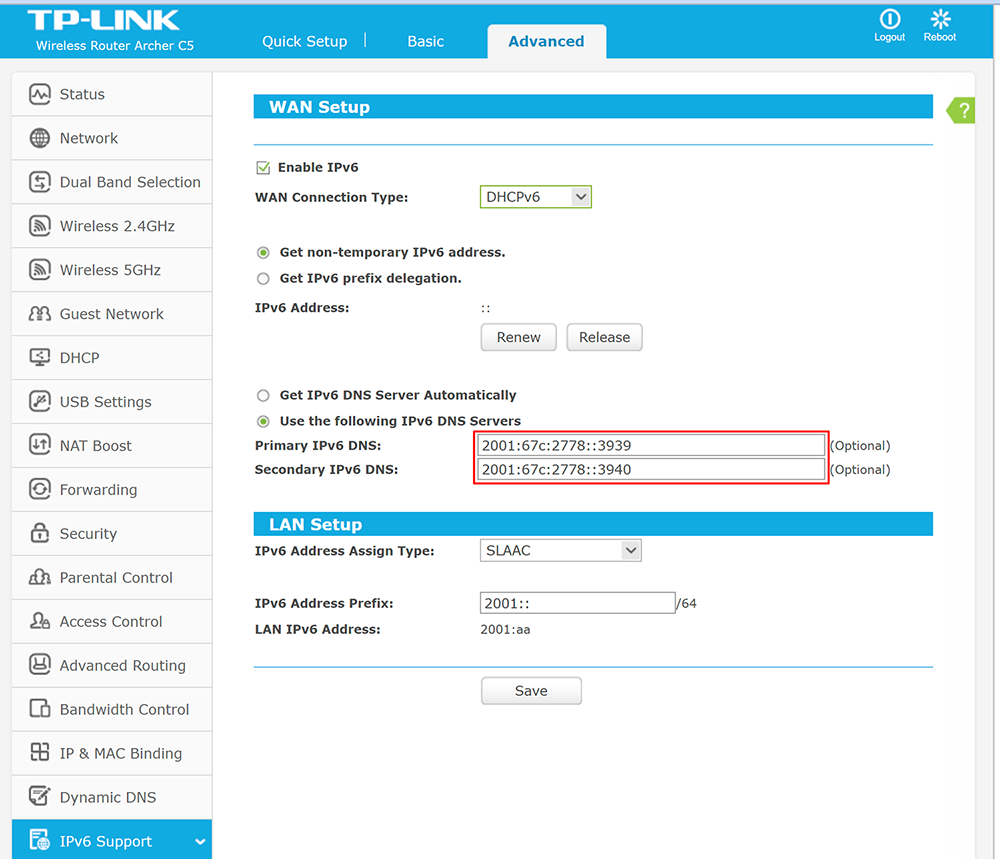
Learn how to secure your router by changing default credentials, updating firmware, disabling risky features, and setting up proper DNS.
This guide is broken into three main sections: 1) a high-level view of router security , 2) detailed instructions for locking down a router , and 3) detailed advice and direction for trying to improve the security posture of a network.
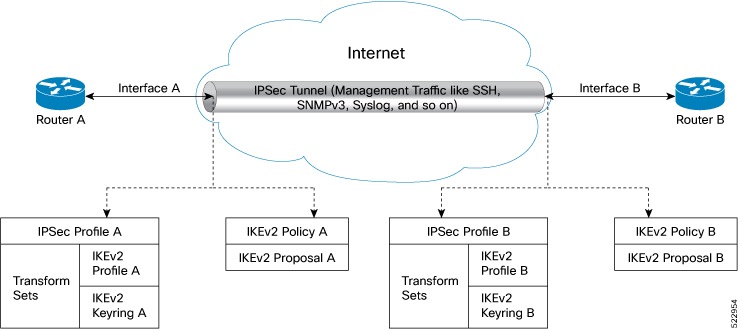
How to configure a router with the 5 security features
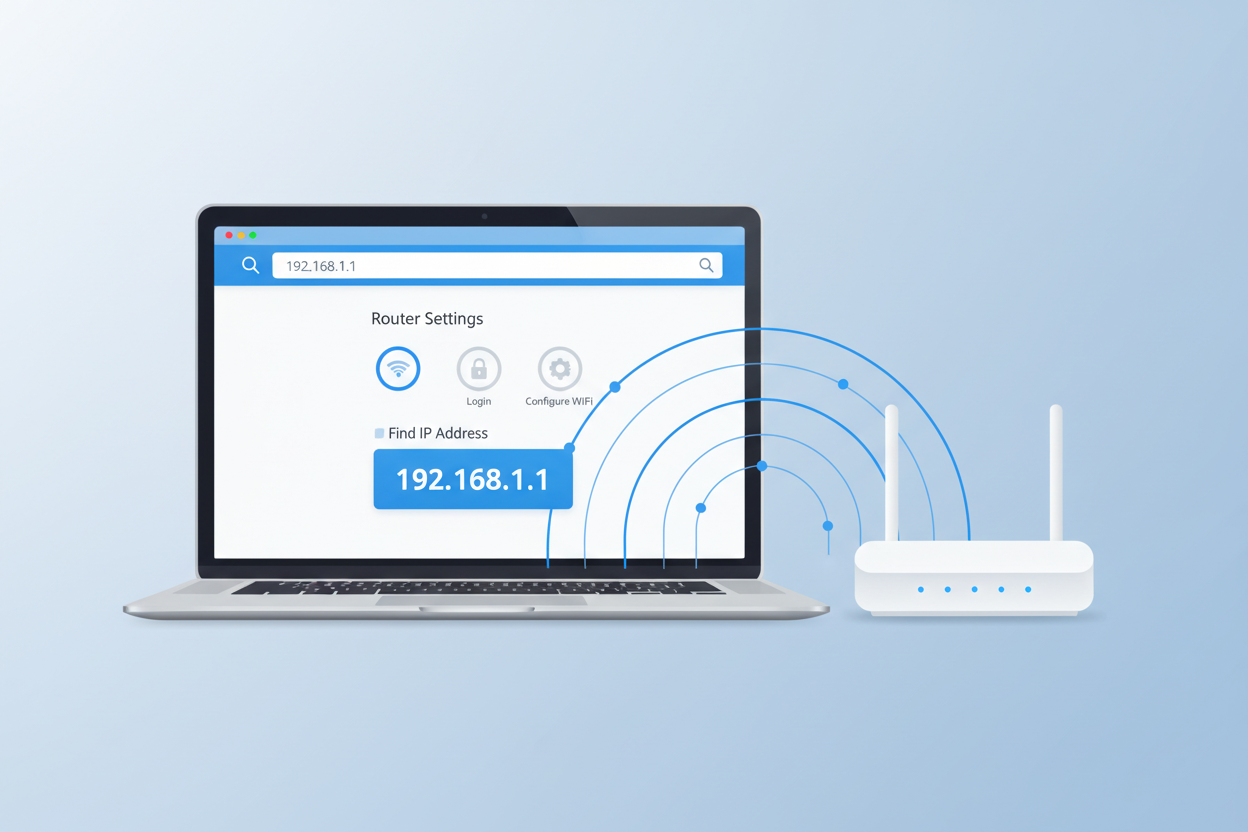
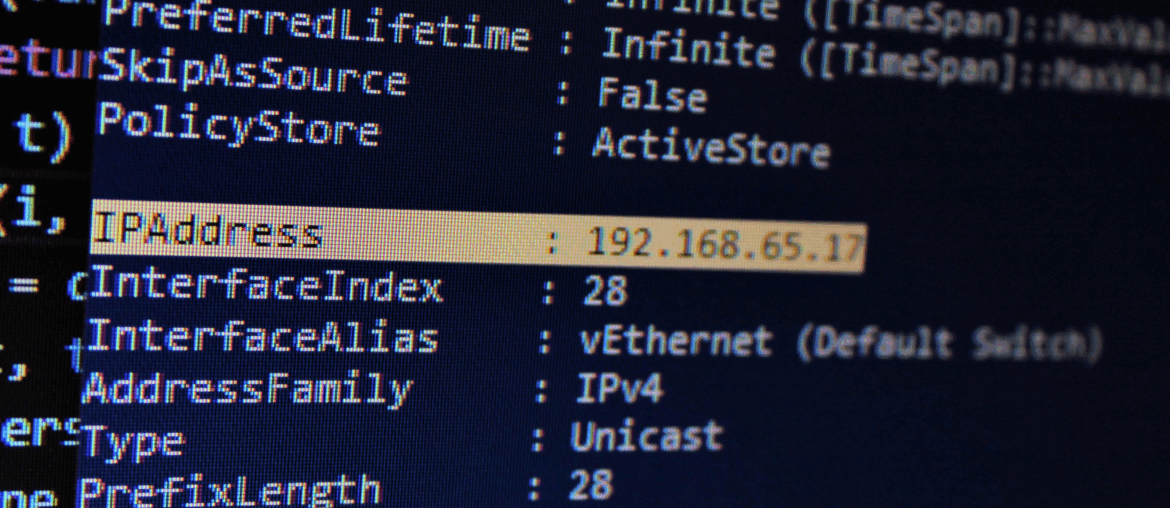
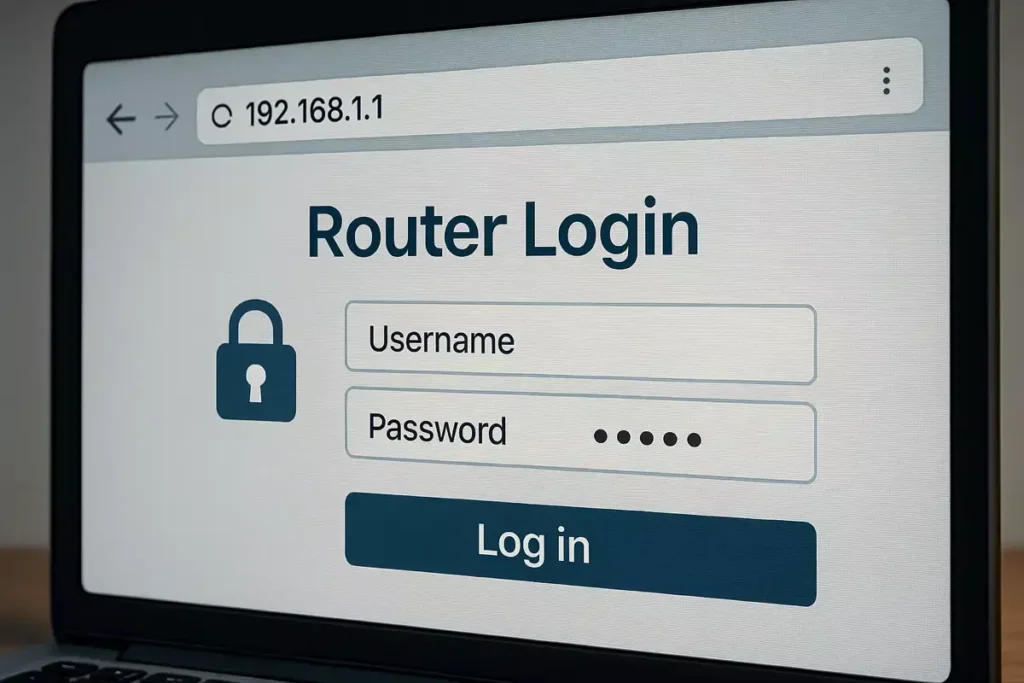
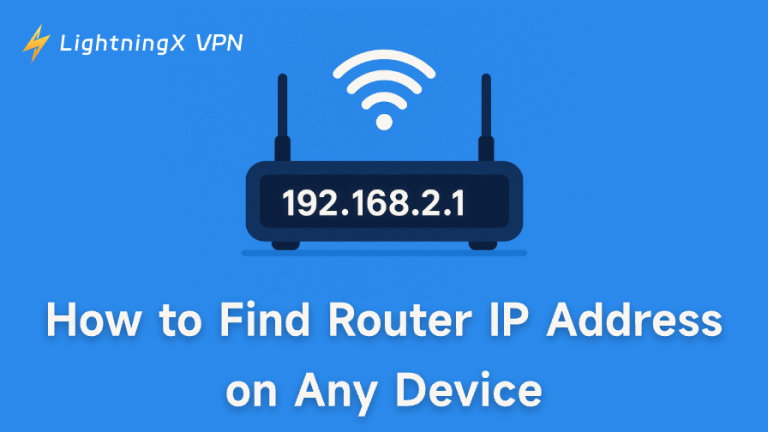
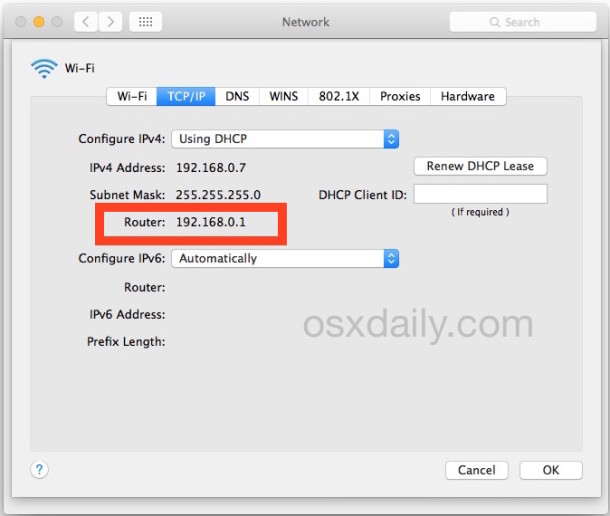
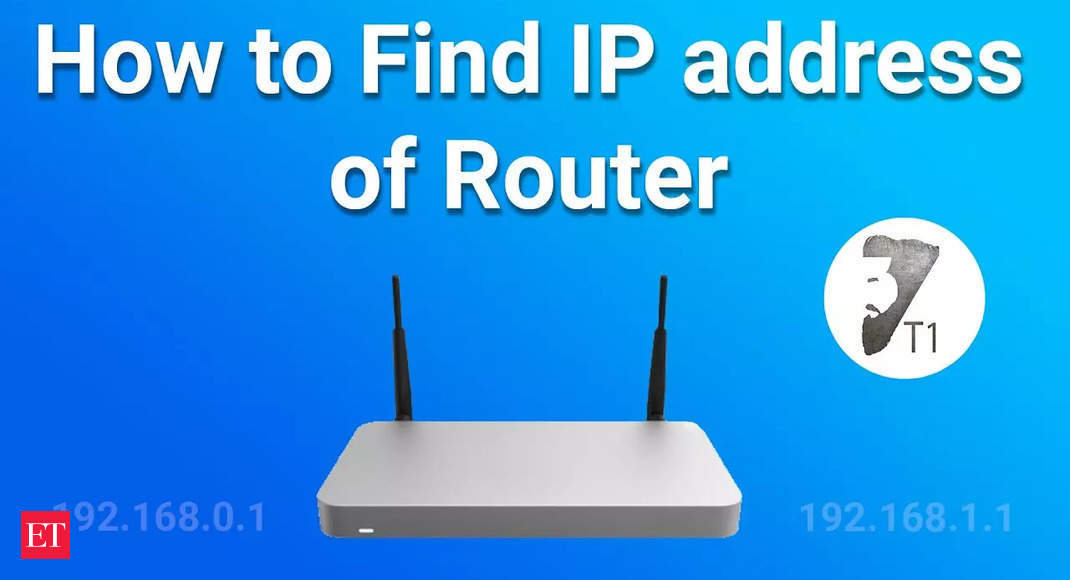
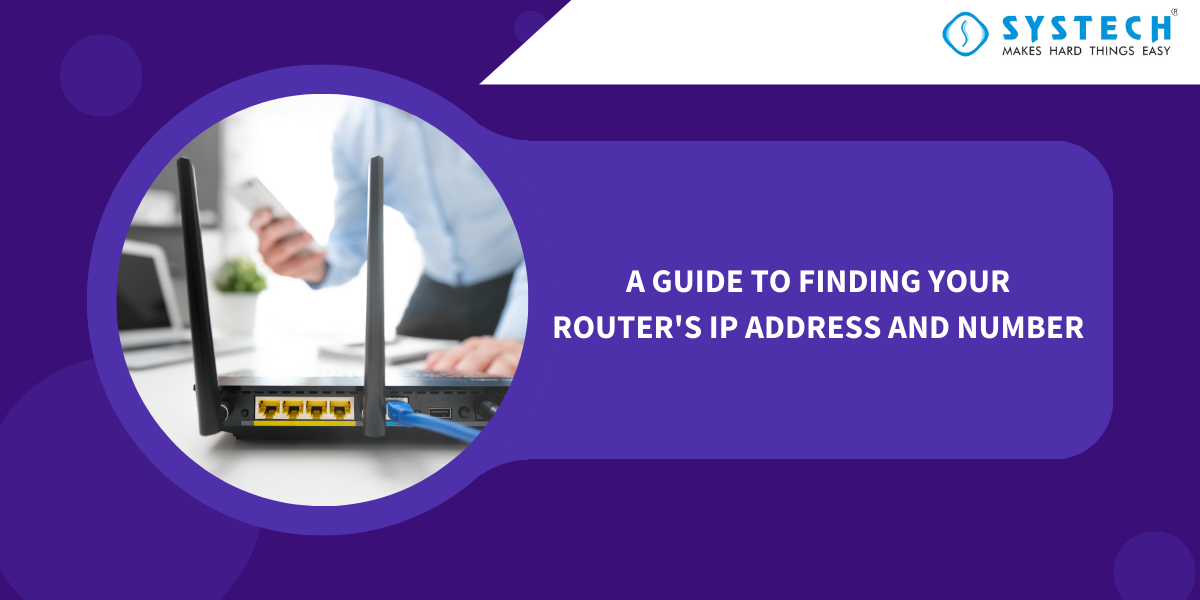
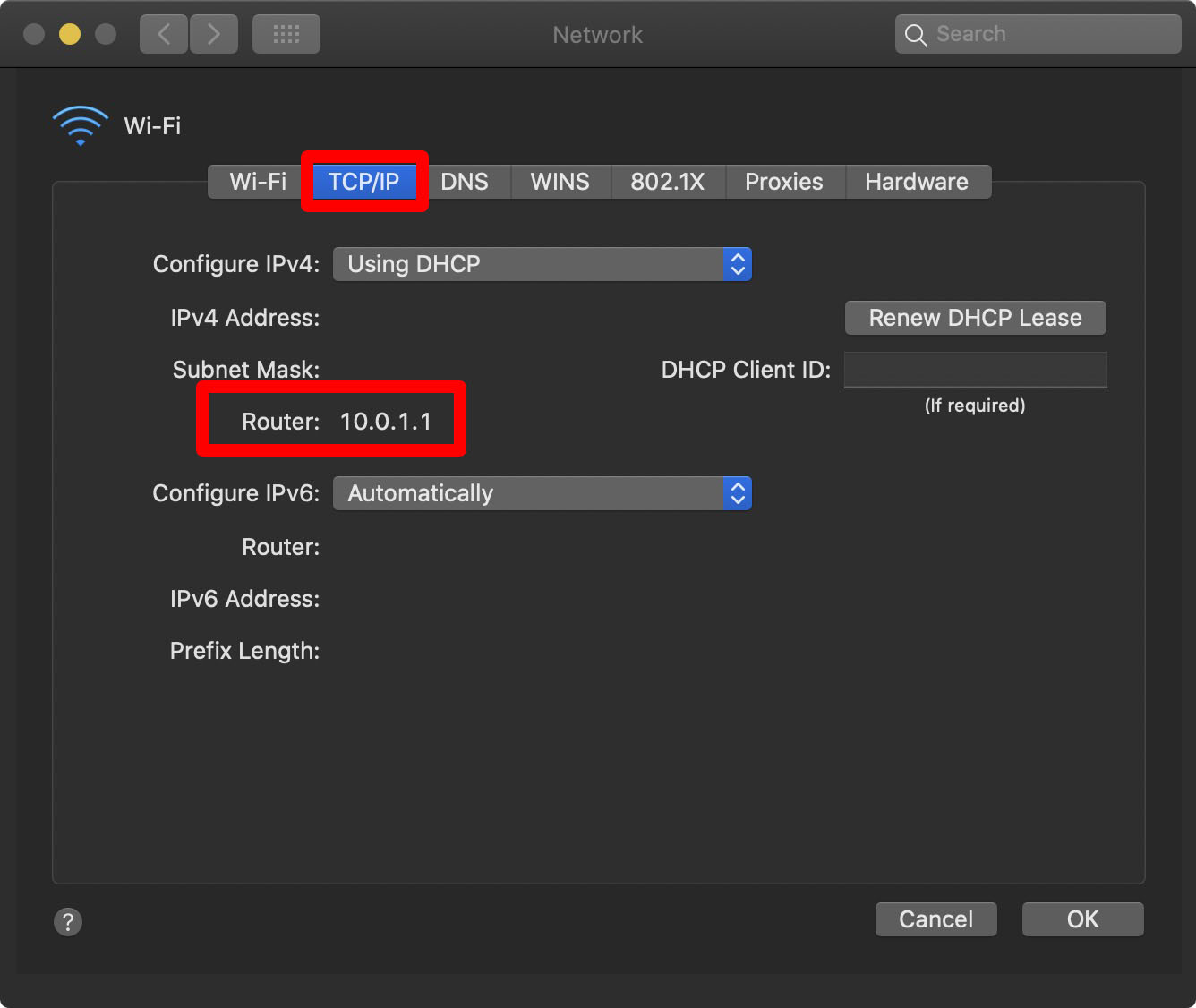
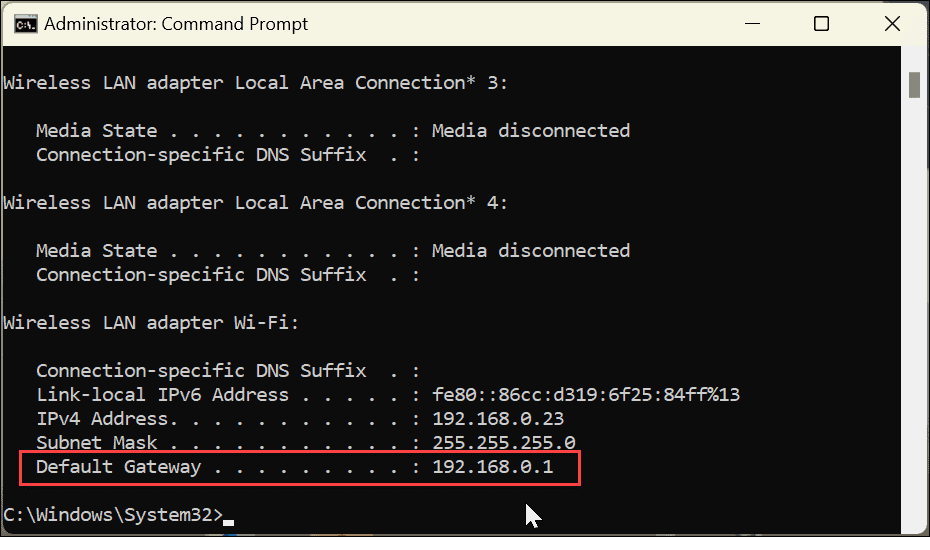
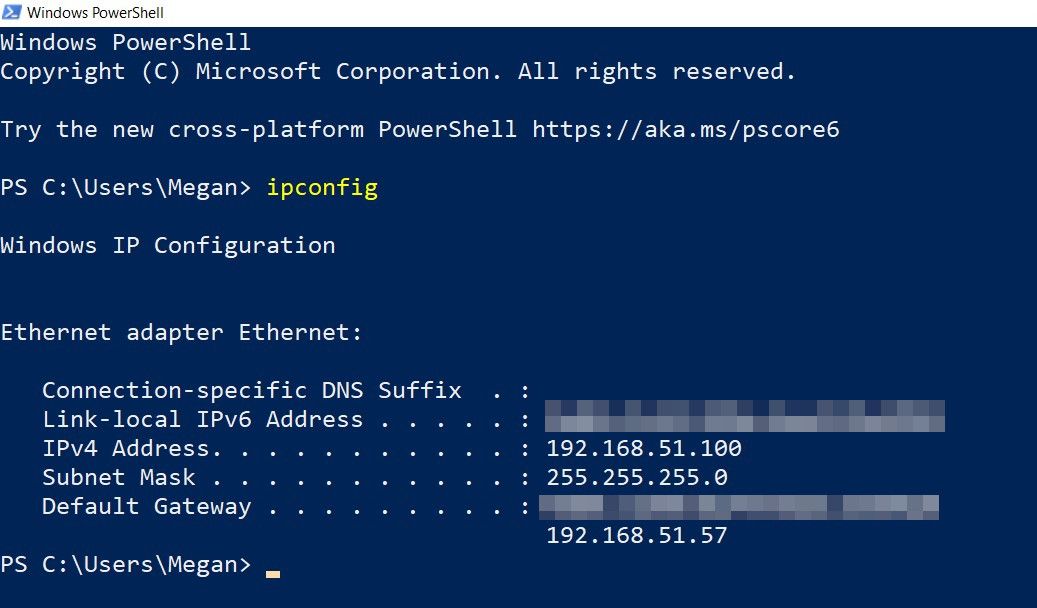
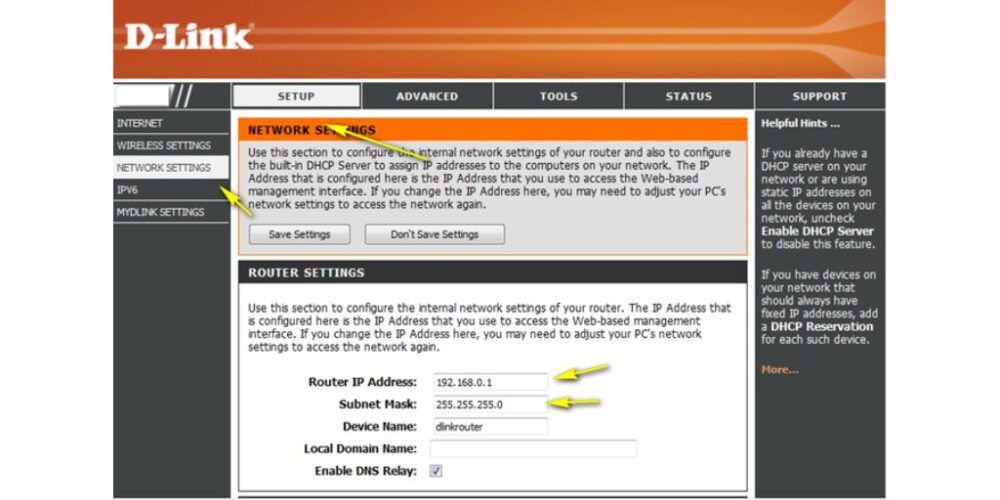
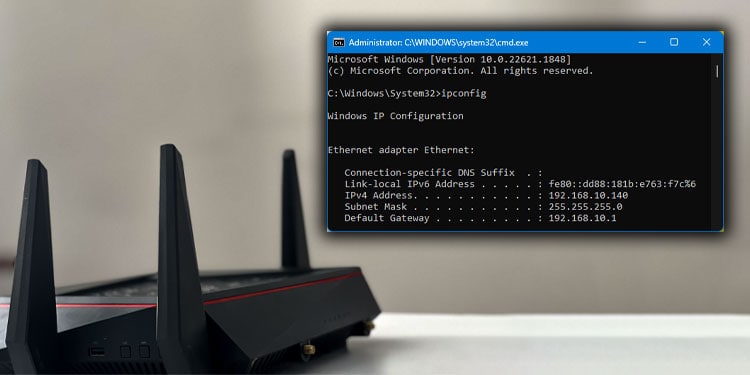
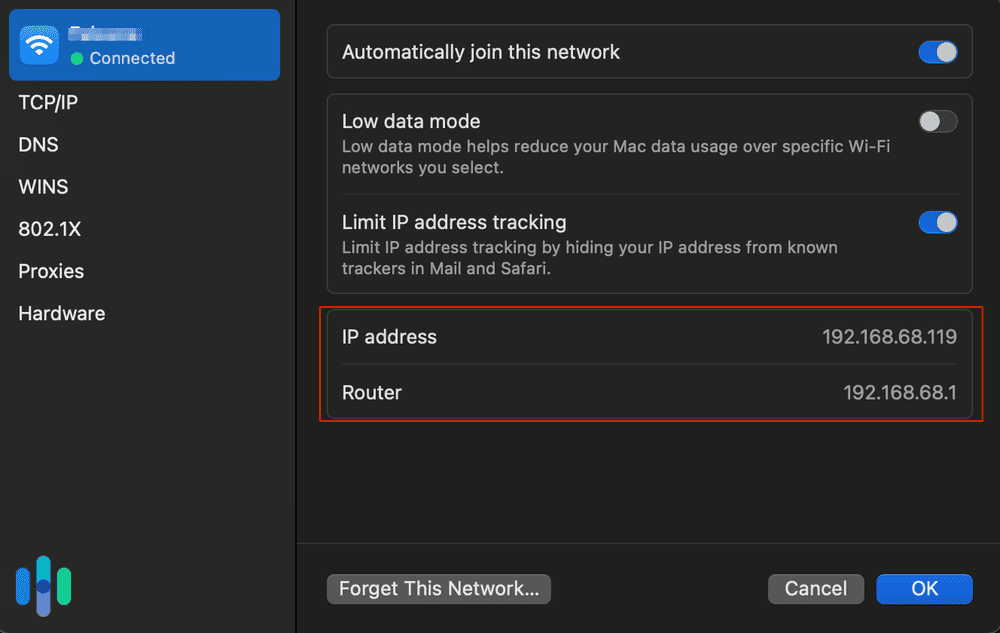
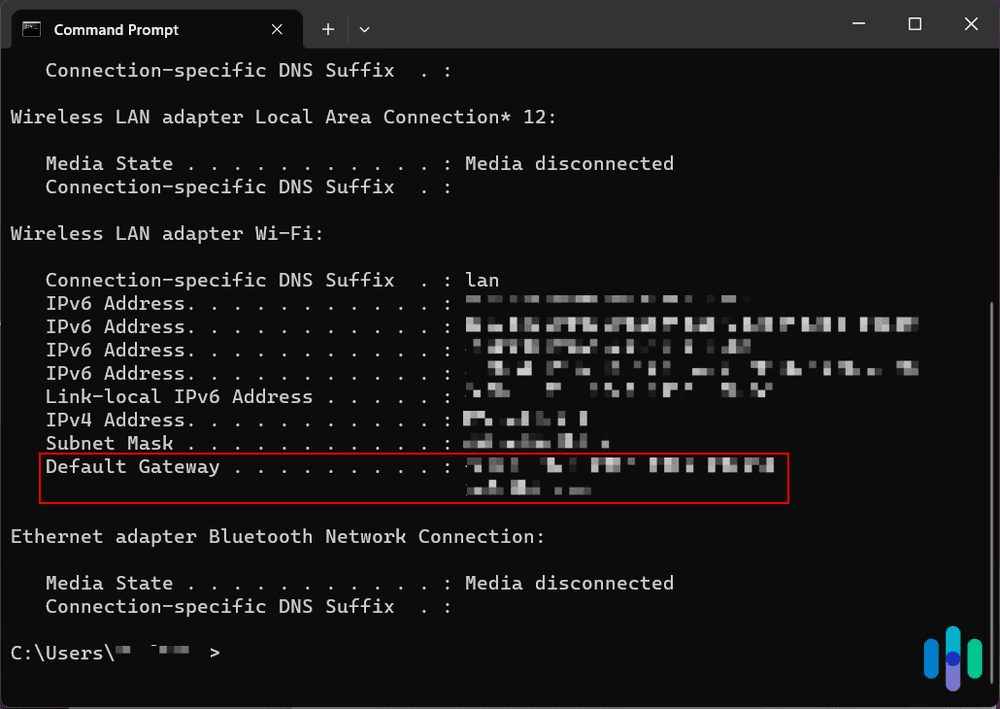
Step 1: Access the router's configuration page To enable security on your router , you must first access the device's configuration page. To do this, open your web browser and type the router's IP address into the address bar. Typically, the IP address is 192.168.1.1 or 192.168..1.
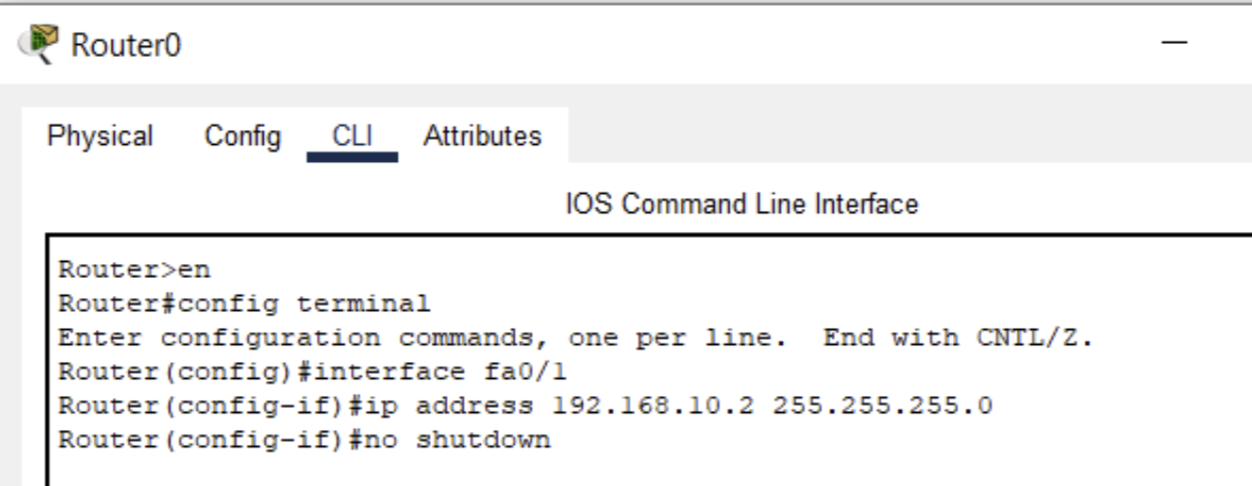
Such details provide a deeper understanding and appreciation for Router Ip Address Security Configuration Guide.
An in-depth guide to set up your router preferences and security settings Your router is the backbone of your home network. Configuring your router will let you access and change your Wi-Fi settings. Properly configuring your router will...